Before you get started, please make sure that your Master Trader application has been successful and you have already created a Master Trader subaccount. For more information on how to become a Master Trader, click here.
Here’s a step-by-step guide to initiating your first copy trade as a Master Trader on Bybit.
Access Your Master Copy Trading Subaccount
Manage Your Copy Trading Settings & Orders
Initiate a Trade
View the Order and Position Details
Set TP/SL
Cancel Order or Close Position
Manage Your Master Trader Profile
Edit Your Personal Settings
View Profit-Sharing Details
Share Your Profile or Order
Access Your Master Copy Trading Subaccount
On the Bybit homepage, hover the cursor to your Profile and click on the Switch/Create Account button. Then, click on the available Master Trader subaccount from the selection to access the Master Copy Trading page.
Alternatively, you can simply click on the available Master Trader Subaccount listed under the Recently Used section if you have previously accessed the subaccount via the account switch.
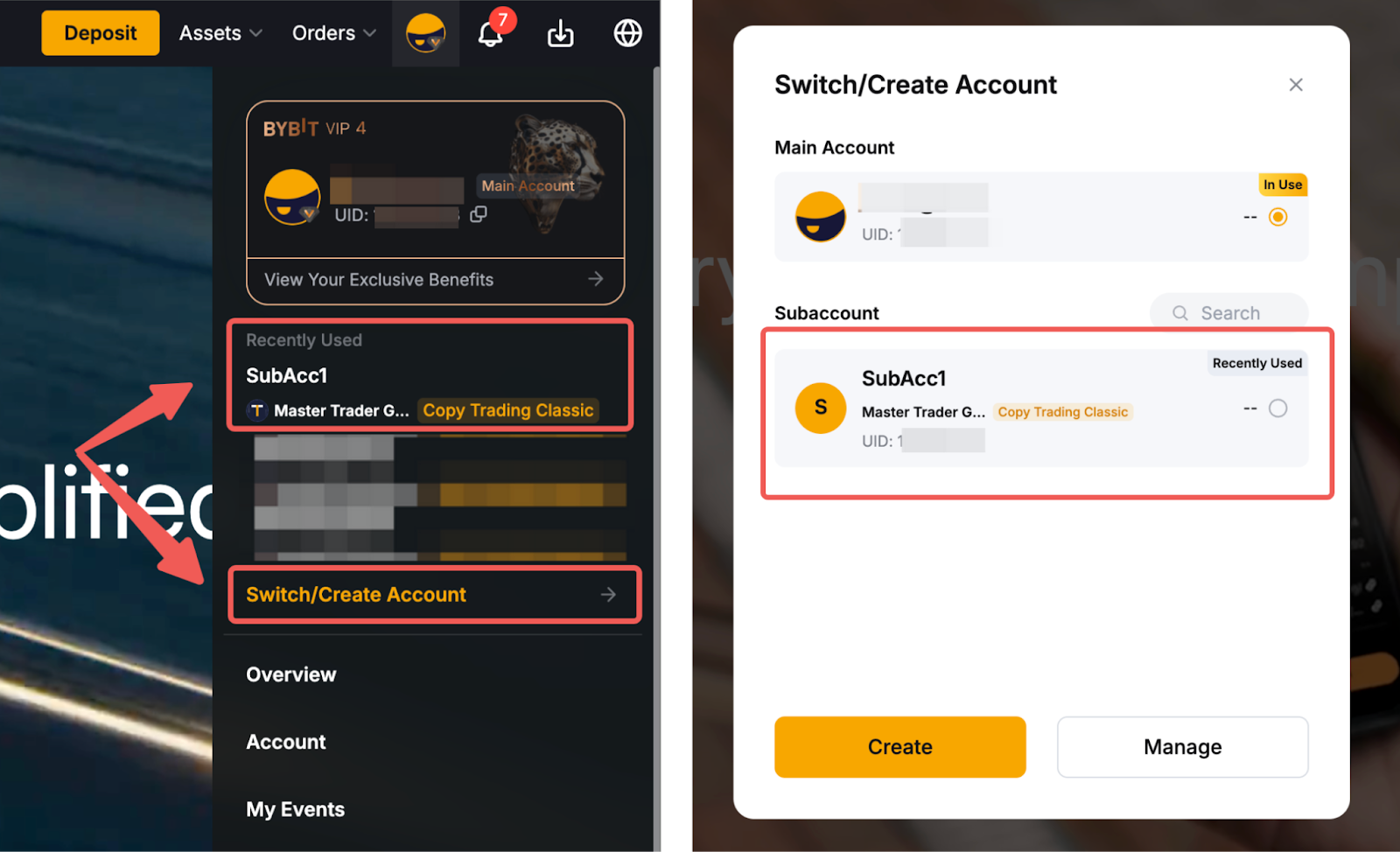
Note: If you cannot find your Master Trader subaccount from the list, kindly check the account status via the Subaccount settings. Make sure that either the Account Switch function has been enabled or the subaccount has not been temporarily frozen.
Manage Copy Trading Settings & Orders
Initiate a Trade
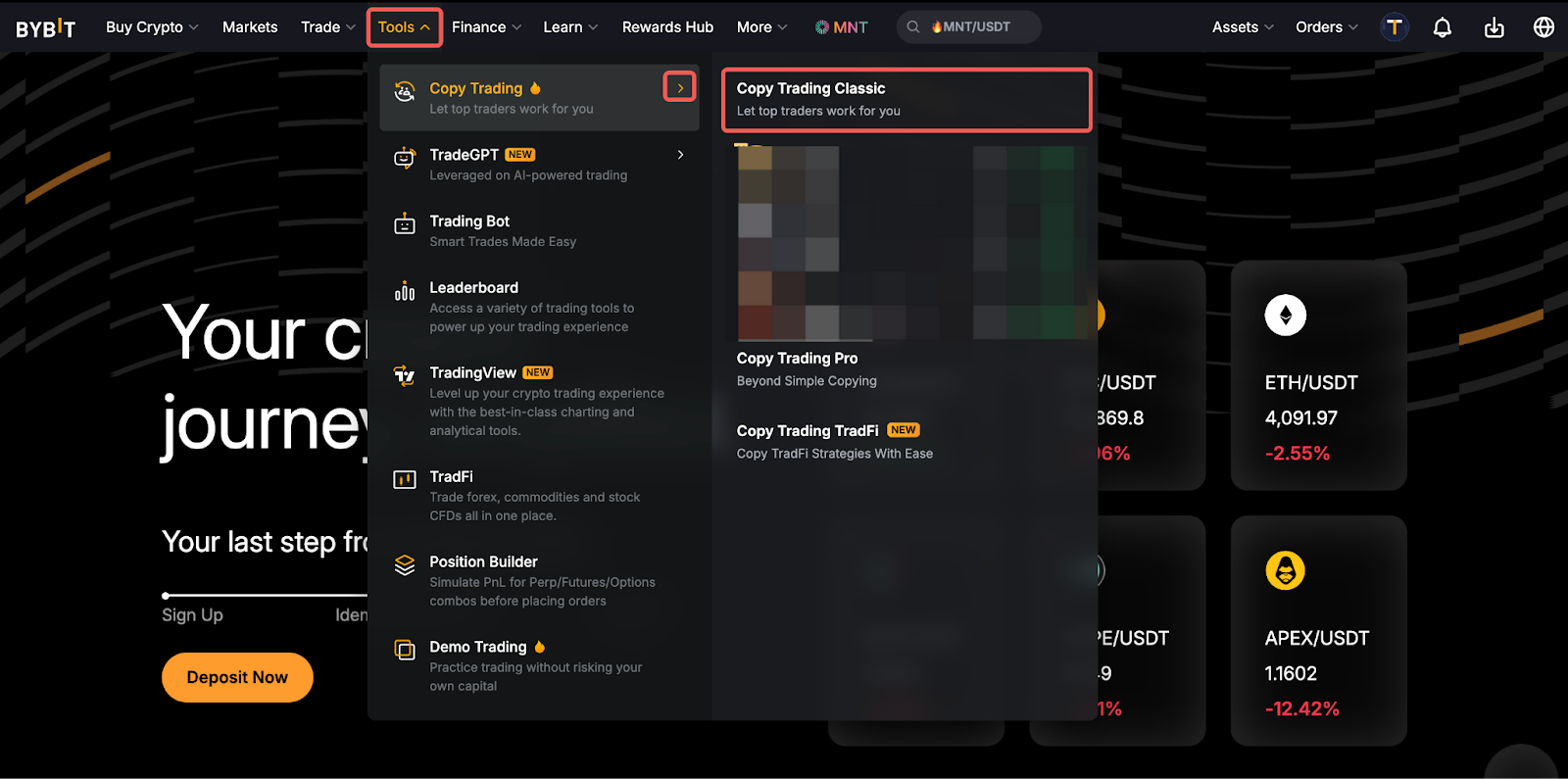
Step 1: On your Copy Trading Master subaccount, please click on Tools → Copy Trading in the navigation bar to enter the Copy Trading page.
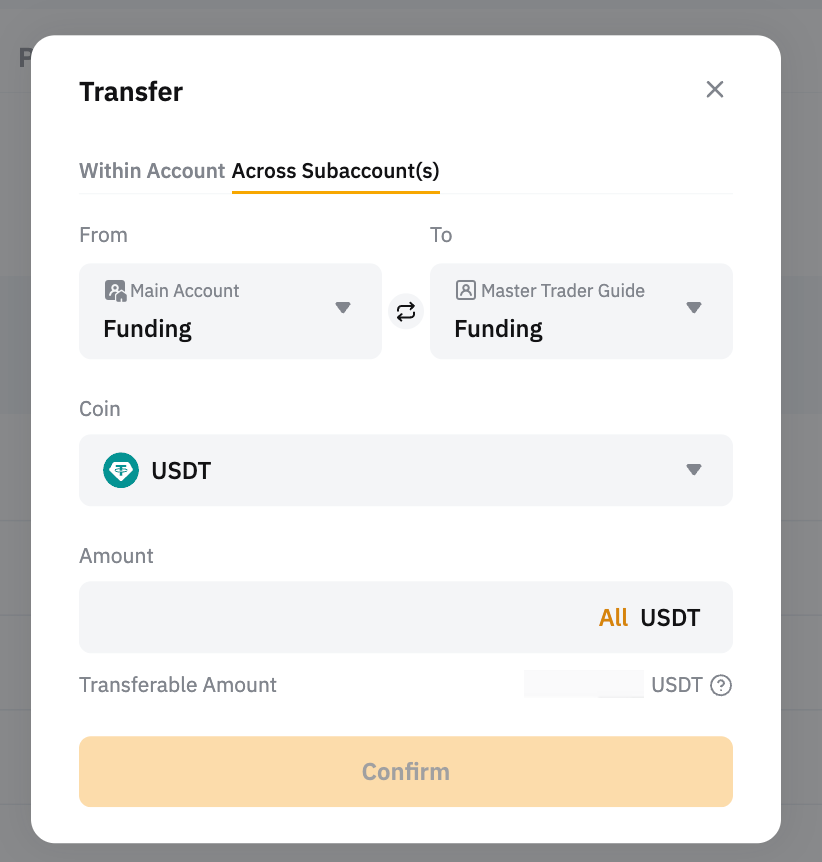
Step 2: If you’re entering the Copy Trading page for the first time to initiate a trade, please click on My Copy Trading (Master Trader) → Transfer to make a deposit.
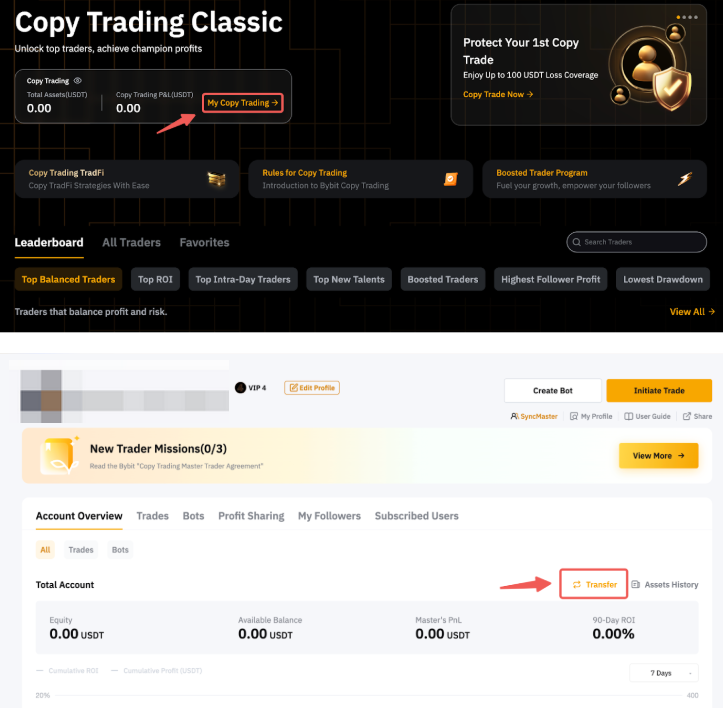
You will need to transfer funds to your Unified Trading Account within your Master Trader Subaccount.
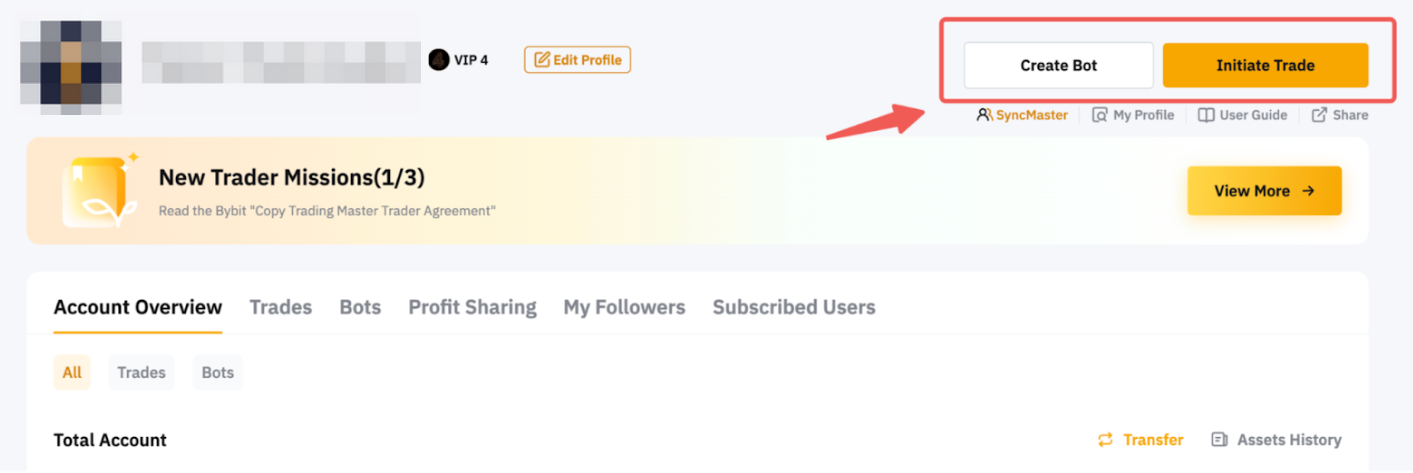
Step 3: Click on Initiate Trade on the right side of the Trader's Center (Master Trader) and you will be redirected to the USDT Perpetual trading page.
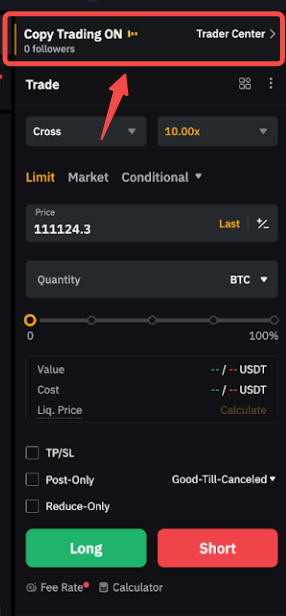
All order placement features and trading tools available for USDT Perpetual trading are supported for Master Traders. You can see the number of Followers copying trades for the respective trading pair above your order zone. To view the supported trading pair under Copy Trading, please visit here.
Congratulations! Your trade has been successfully initiated.
View Order and Position Details
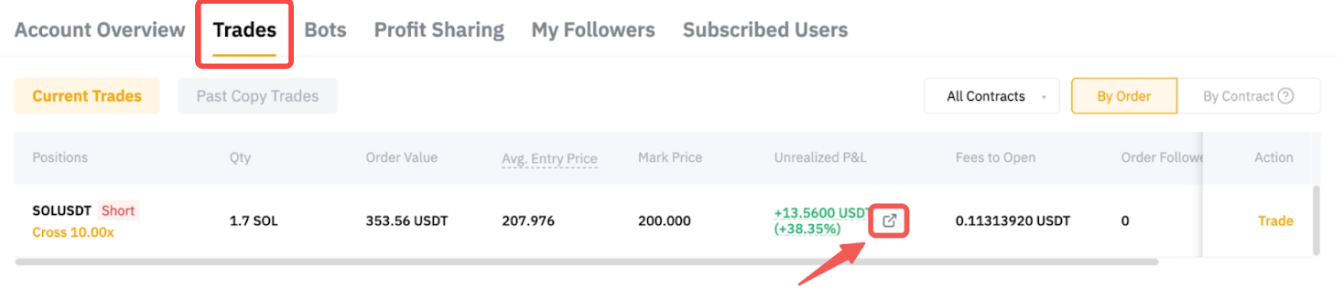
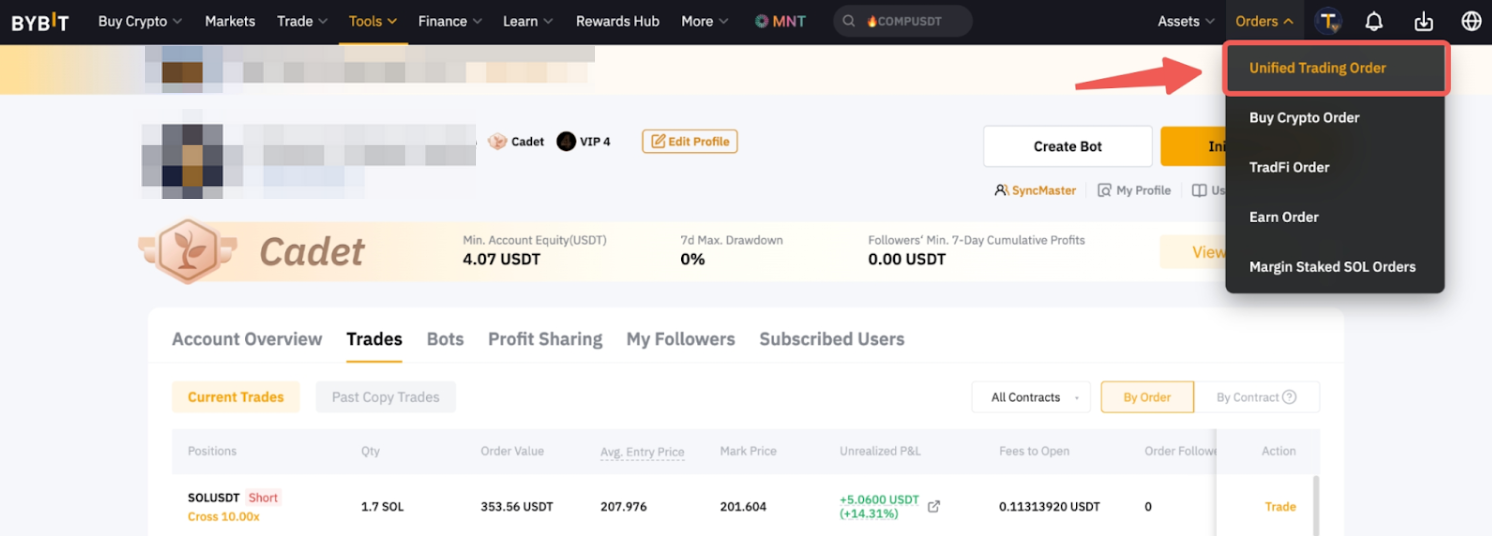
You can view the position or order details from the USDT Perpetual trading page or Trader's Center (Master Trader) → Trades page. Both pages will present the same data.
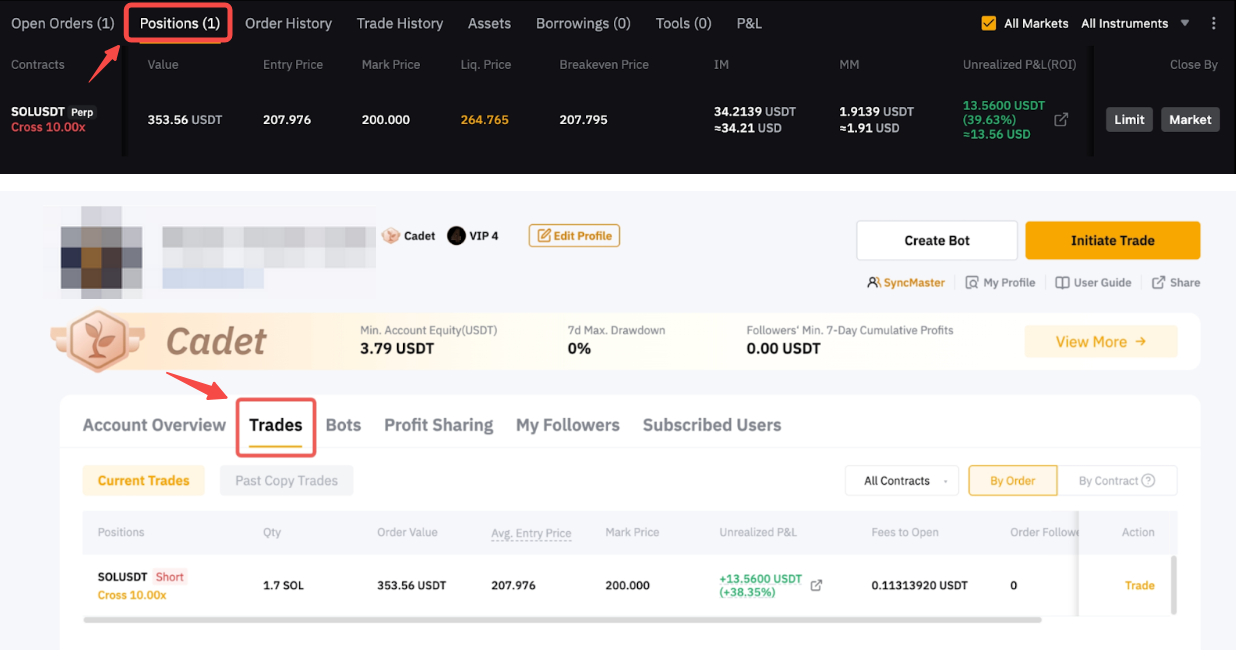
On the Trader's Center page, you can view order details either By Order or By Contract. Under the By Order tab, it shows the orders placed by each respective Master Trader. Under the By Contract tab, all orders for the same trading pairs opened in the same direction are consolidated into one position. The position Average Entry Price, Order Quantity, Mark Price, and Liquidation Price are displayed from a position perspective. It will be reset only when the respective direction of the position is fully closed.
The unrealized P&L on both tabs is calculated based on the average entry price. To view each order history, go to your Unified Trading Order page. For more information, please refer to FAQ — Copy Trading.
Set TP/SL
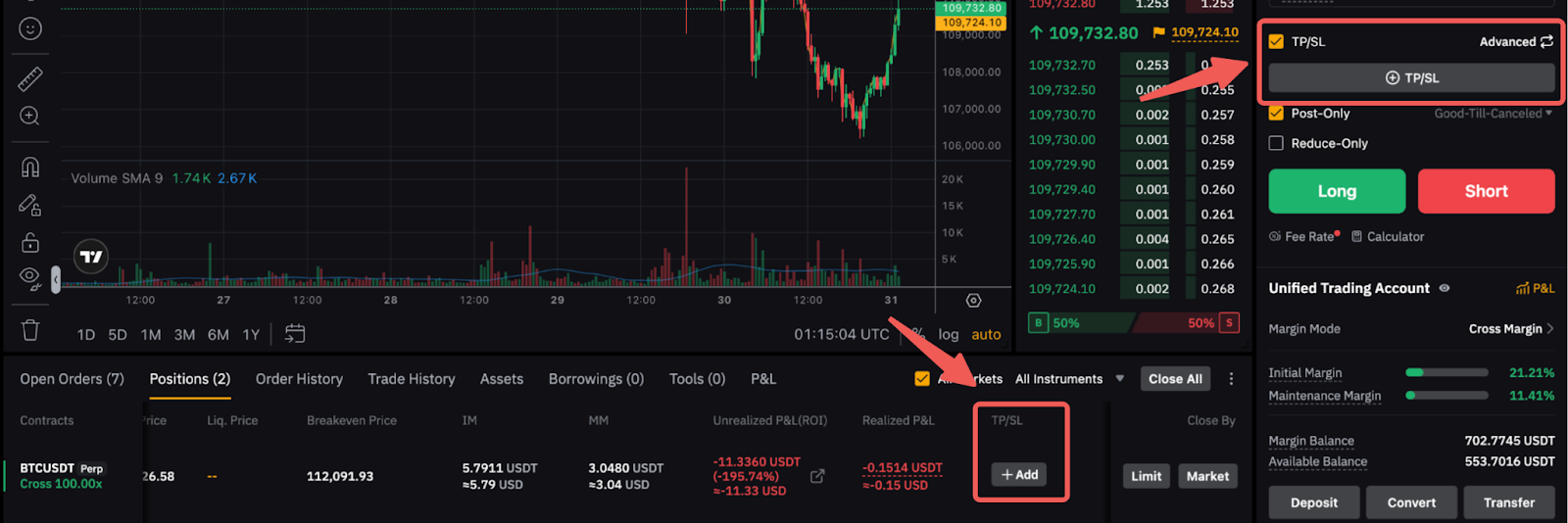
To set a TP/SL for your orders upon order creation, simply click on the Take Profit/Stop Loss on the order zone when you create your order. Alternatively, you can set a TP/SL for your open position from the position tab. For more details, please refer to this page.
Cancel Order or Close Position
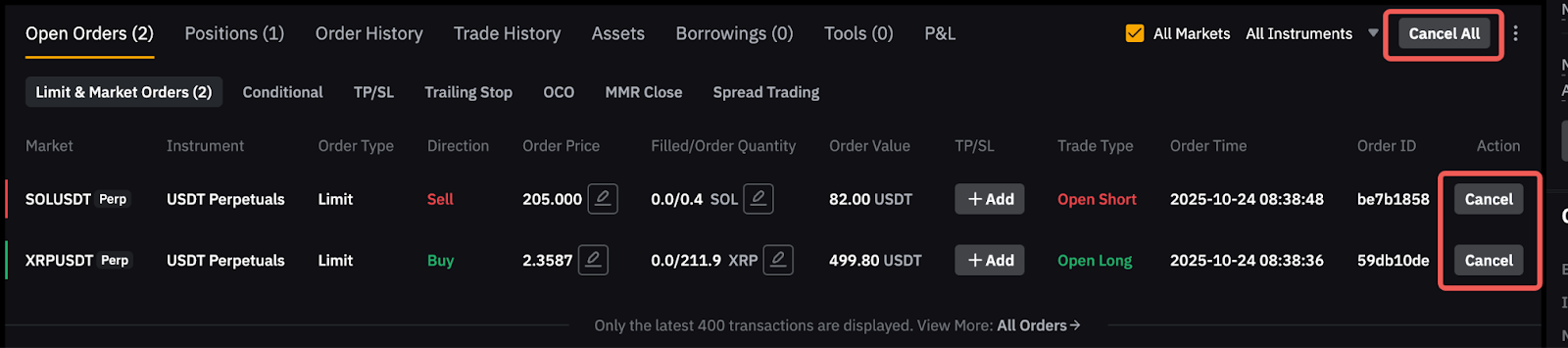
To cancel your order, you can go to the Open Orders tab on the Perpetual Trading page.
To close a position, go to the Positions tab and you can close by Limit or Market order. If you want to close using other strategies such as a conditional order, you can either utilize our built-in TP/SL function (for Hedge mode) or place it from the order zone in One-way mode.

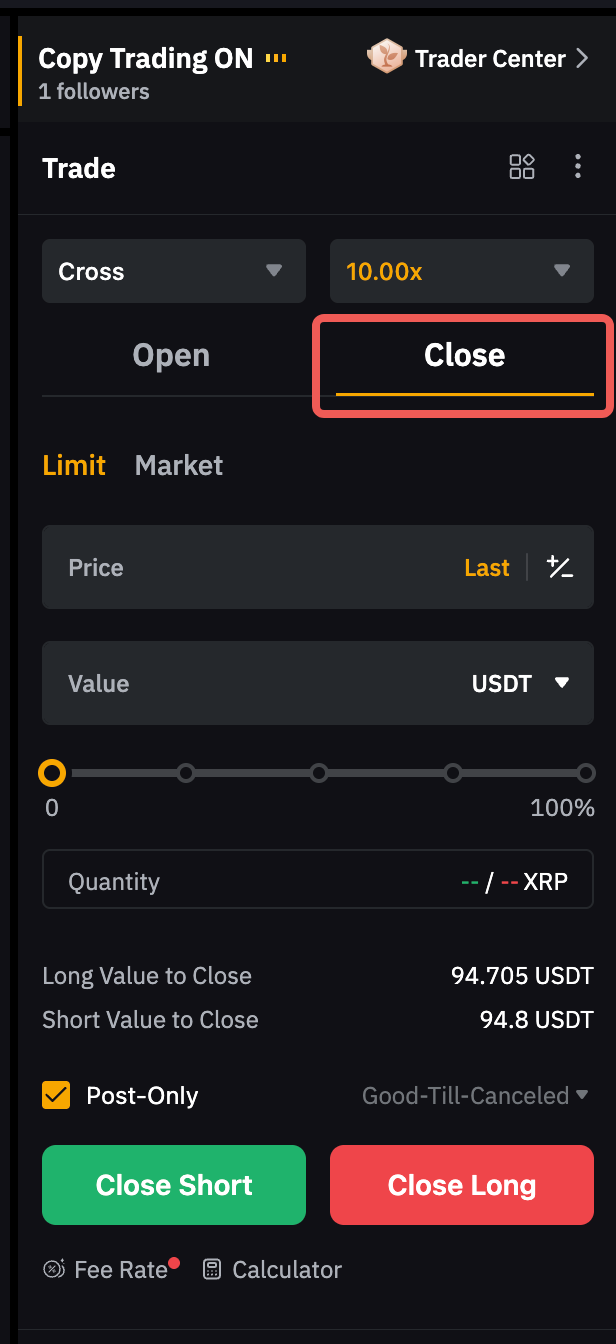
Additionally, you can place a closing order directly from the order zone under the Hedge Mode. Simply fill out the order information and click on Close Short/Long, depending on the direction you wish to close.
Note: If the Master Trader‘s position in a trading pair is liquidated, all positions in the corresponding trading pair in the same direction of Followers will also be closed.
Manage Your Master Trader Profile
Edit Your Personal Settings
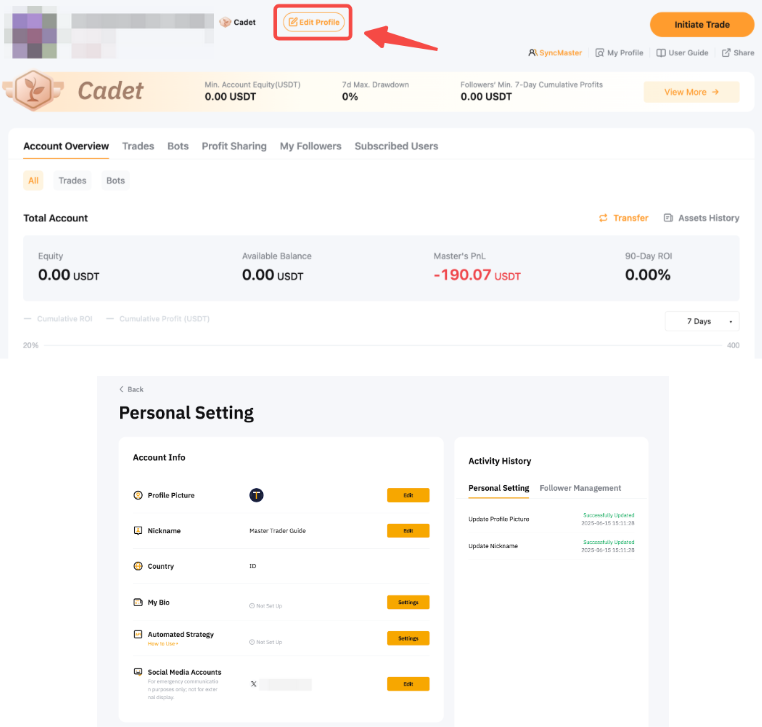
To go to your Personal Settings Page, click on My Copy Trading → Edit Profile to manage your Account Info, Follower Settings, and Privacy Settings. Please note that any updates to the Account Info will need 1 – 3 business days for approval.
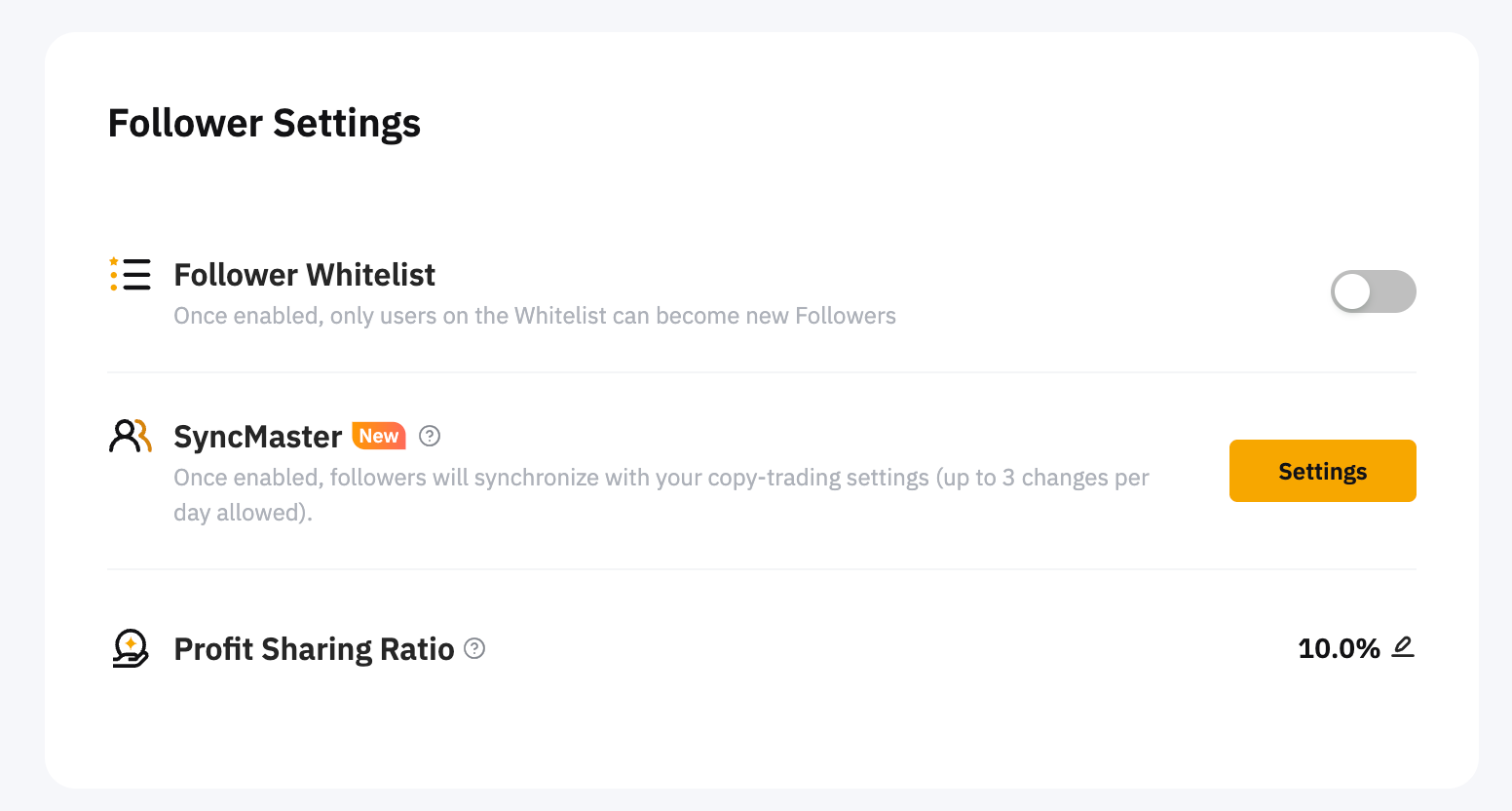
Under Follower Settings, you can manage your Follower Whitelist, SyncMaster, and Profit Sharing Ratio.
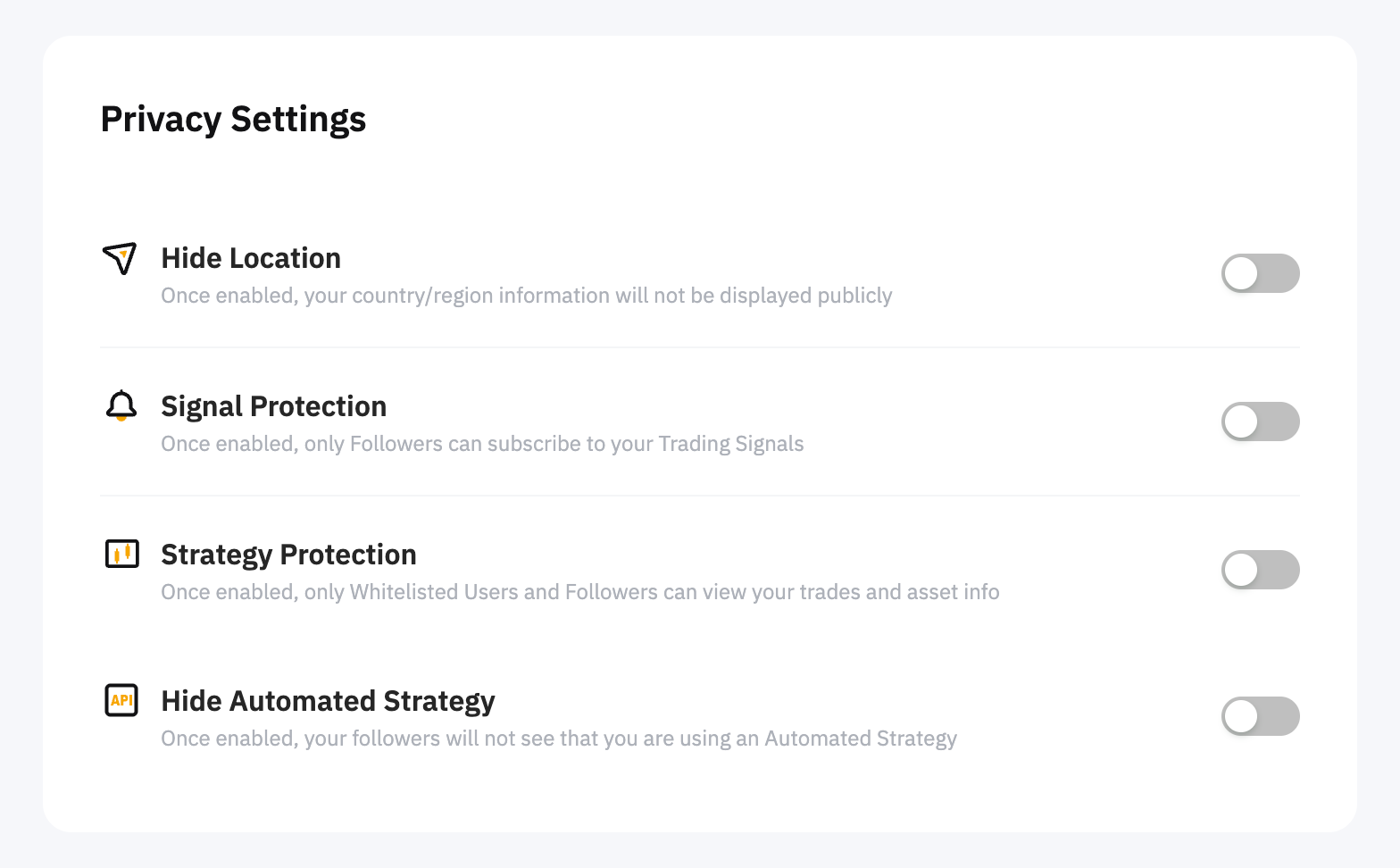
Under Privacy Settings, you can manage your location display, signal protection, strategy protection, or hide your automatic strategy from the public.
View Profit-Sharing Details
You can view your Profit Sharing Details from your Trader's Center and the distribution record from the Funding Account. For more information, please refer to Copy Trading: Profit Sharing Explained.
Share Your Profile or Order
To share your profile, click on the Share button located at the upper right corner of your Trader's Center page. Alternatively, you can click on Share in your Master Trader Portfolio page.
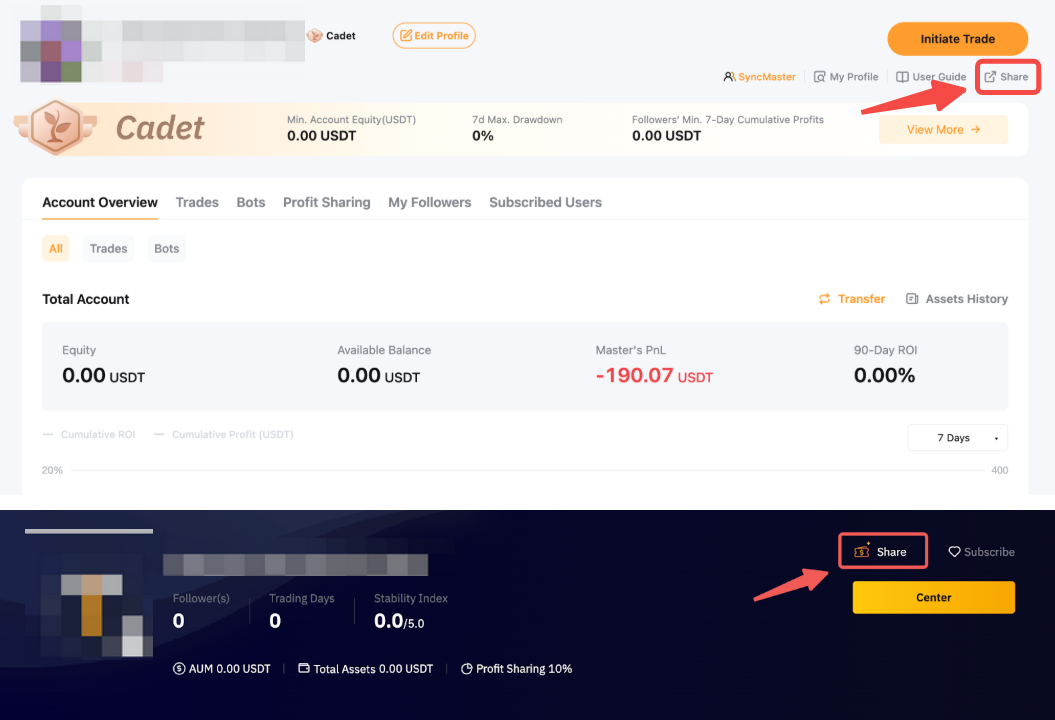
By doing so, you are able to share your trading performance on social media accounts such as Telegram, Twitter, Facebook and Whatsapp with one click.
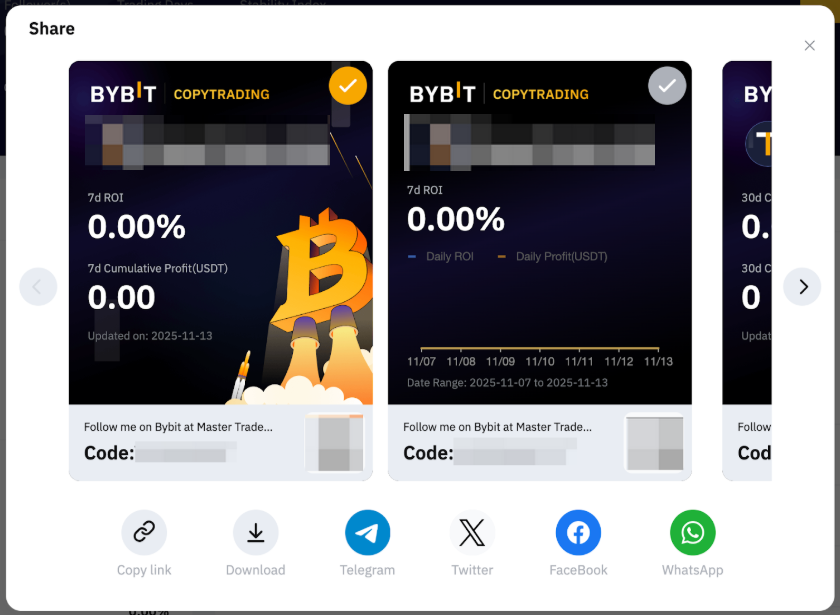
You can also show your top-performing positions by sharing individual order P&L on social media.